Content Acknowledgements
Acknowledgements for Compliance: Ask Employees to Mark Content as Read & Understood

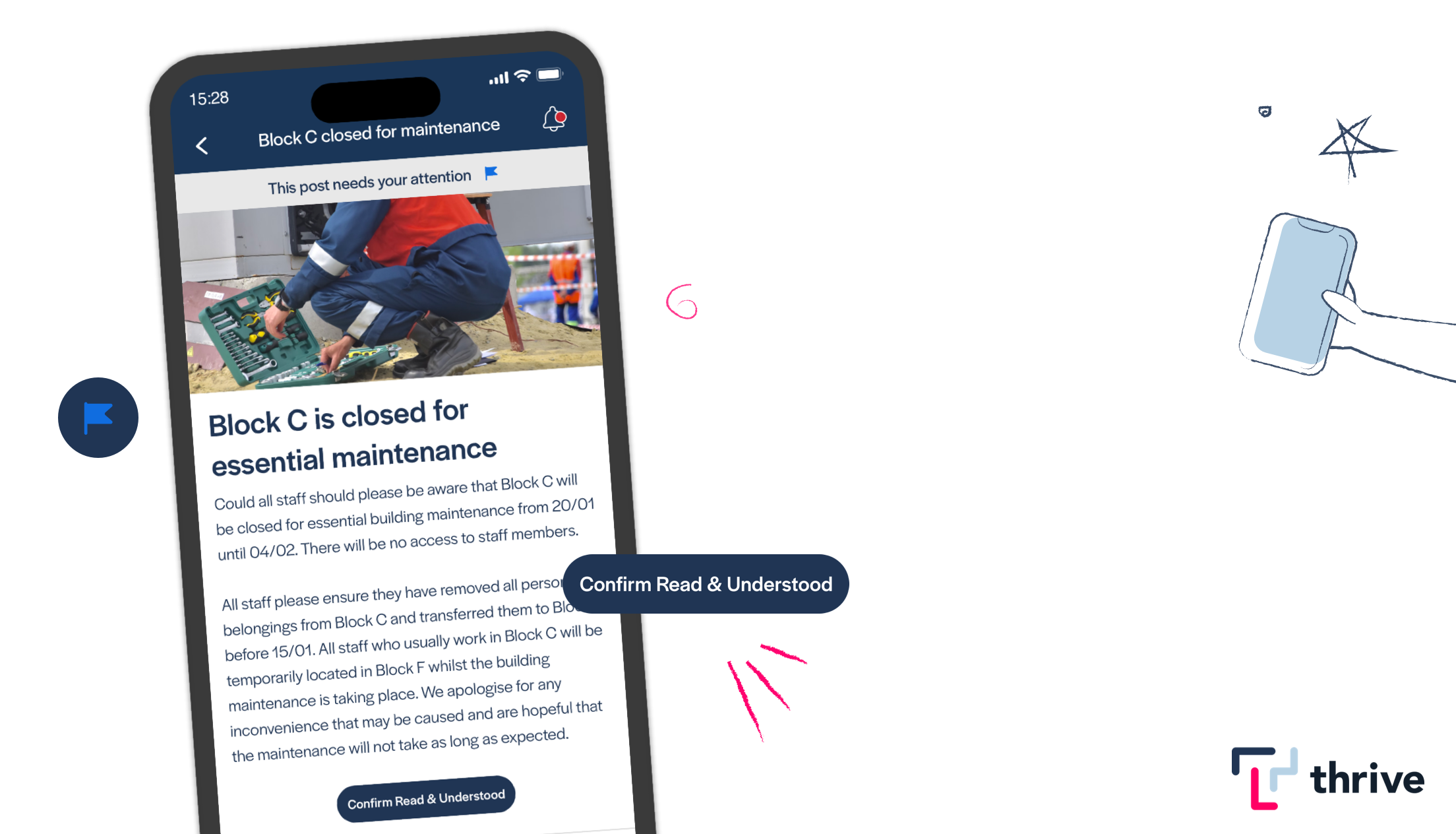
If you have some important information that needs to be reviewed and signed off by your employees... like a critical Health & Safety policy update, or a Process Change enacted by your client... rather than getting your employees to sign printouts, why not use our Acknowledgements feature instead? Below, you'll find out how to use this feature in your app to ask your employees to mark specific content as 'read and understood' and how to export reports that show who has and hasn't completed the acknowledgement.
In this section:
- What are Acknowledgements?
- How to enable a Compliance Acknowledgement in the Thrive CMS
What are Acknowledgements?
This feature allows the app administrator to mark a page in the app as requiring the attention of app users. Users can then press a button on the page to mark it as complete (or opt-in). The app administrator can then export reports from the Thrive CMS to show which users have and have not marked the content as completed or opted-in.
Our Acknowledgements functionality was built to help organisations get instant feedback and response to app content. Adding this simple mechanism into your app pages helps you create feed loops to allow you to confidently determine who has had access to content and who has acknowledged it.
How to create a Compliance Acknowledgment: Marking Content as Read & Understood

Creating Acknowledgement Content
If you have an important brief for employees, and you want them to mark it read and keep track of who has done so, you'll want to create a Compliance Acknowledgement.
Start by creating a 'Page' in the Content Management System which contains the text or attached document as required.
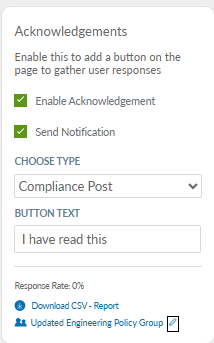
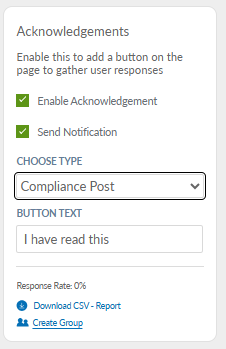
Next, enable Acknowledgement in the panel on the right of the screen, and choose Send Notification if you want to let Users know via an in-app notification that there is a post that requires their attention. Next, select 'Compliance Post' from the Choose Type drop-down and add in the Button Text to show compliance:
If your content is applicable to only some users, you'll also want to make sure that you've selected the appropriate user groups from the Audience tab, so that your content is visible only to the people who need to see it.
Finally, press Save and Publish Now in the CMS.
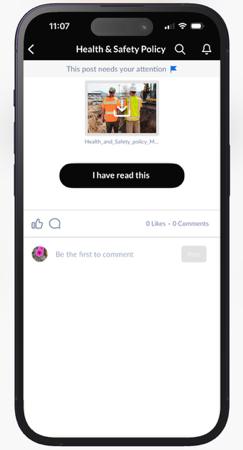
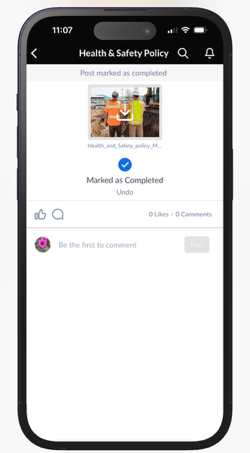
In the app, your users will receive a notification to let them know that a post requires their attention, and after reading it they'll be able to press the button to confirm that they've read and understood.
To view who has marked the content as Read & Understood, Click on Download CSV - Report.
The automatically created usergroup creates a group with all of the users who have complied with the post. You can name this group to suit your requirements by clicking on 'Create Group'. This will allow you to create supplementary content (such as further information on policies / procedures that have been complied with) that will be visible only to the people who have marked the content as Read and Understood.