Passkeys: Two-Factor Authentication - Guidance & Technical Information
CMS Admins: How to log in to the Thrive CMS after creating a Passkey in your mobile app
When we enable Passkeys for your Thrive organisation, you will be asked to create a Passkey when you try to log in. Each device you use will require it's own Passkey. As an Organisation Admin, this means that you'll use a Passkey to sign into your Mobile App, and another to sign into the Content Management System (and for your Webapp).
Note: You'll only need to go through the below process once, to create the Passkeys for your mobile app and Content Management System!
The simplest way to set up your Passkeys is to begin on your mobile app.
Open your mobile app and create a Passkey for your account when prompted:
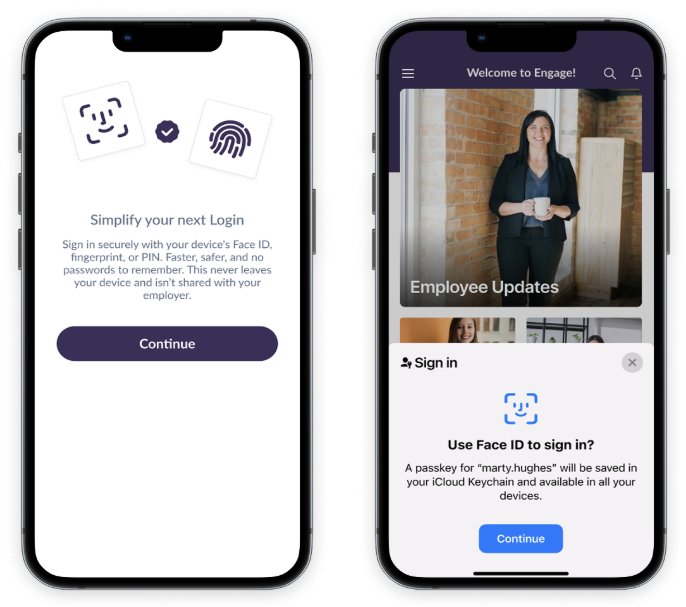
Now that you have created a Passkey in your mobile app, access the Content Management System on your PC.
Enter your Username and press Continue. Like the below example, you will see a message telling you that your account is protected by a Passkey:
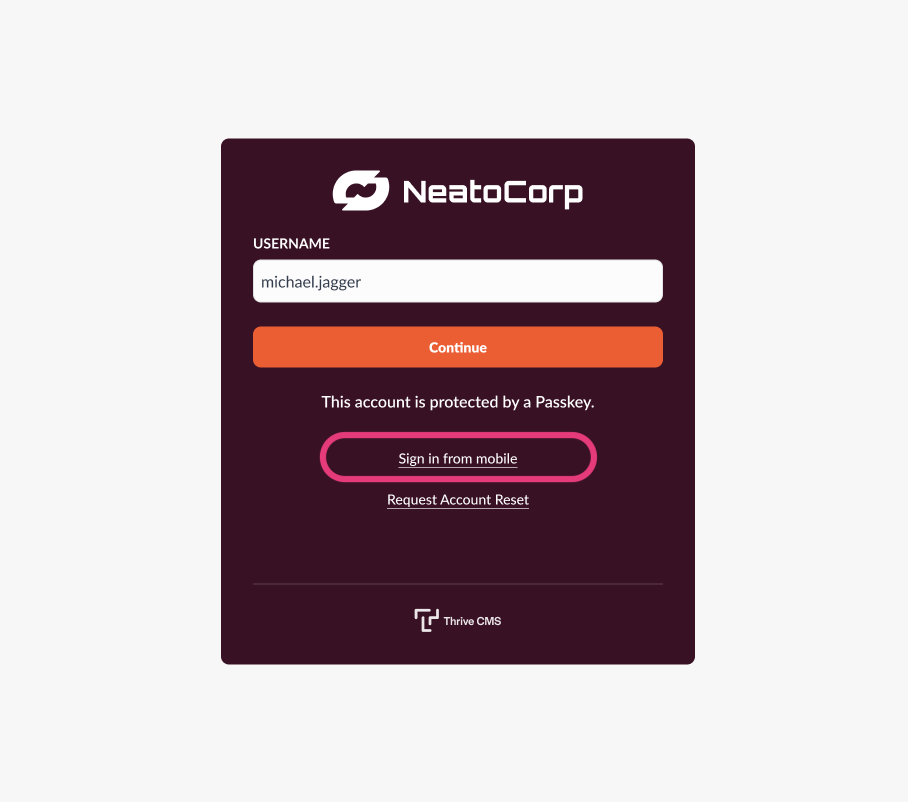
Because you already created a Passkey in your mobile app, click on Sign in from Mobile.
You will now be presented with a sign-in code to use in your mobile app, as shown below:
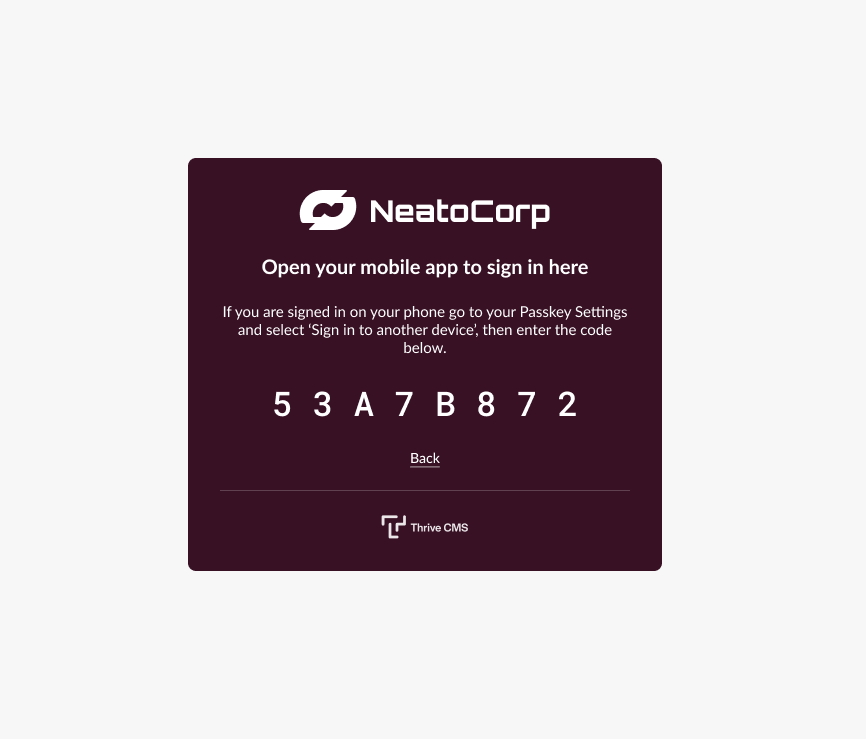
Now open your mobile app. Pull out the sidebar menu and go to:
Settings > Passkeys > Sign in to another device
As shown below, enter the code you were given in the CMS and press the Verify Code button.
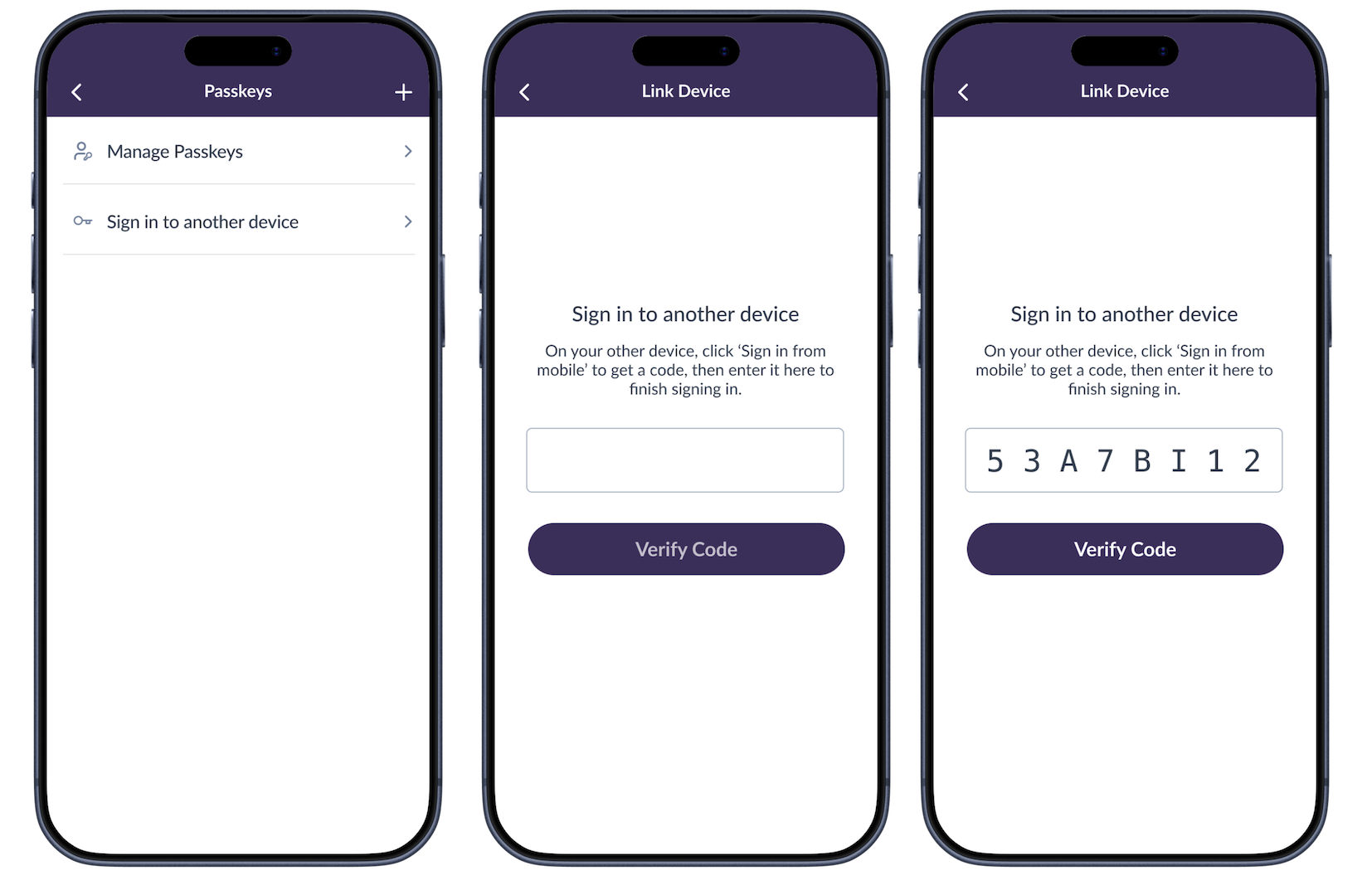
If you entered the code correctly, you will now be asked to create a new Passkey on your account for access to the CMS:
Because your PC / Laptop may have different capabilities to your phone (for example, your PC may not have FaceID or Fingerprint) the options presented to create a Passkey for the CMS may be slightly different than the below example. If your PC / Laptop does not have FaceID or Fingerprint, then you'll probably create this Passkey as a PIN:
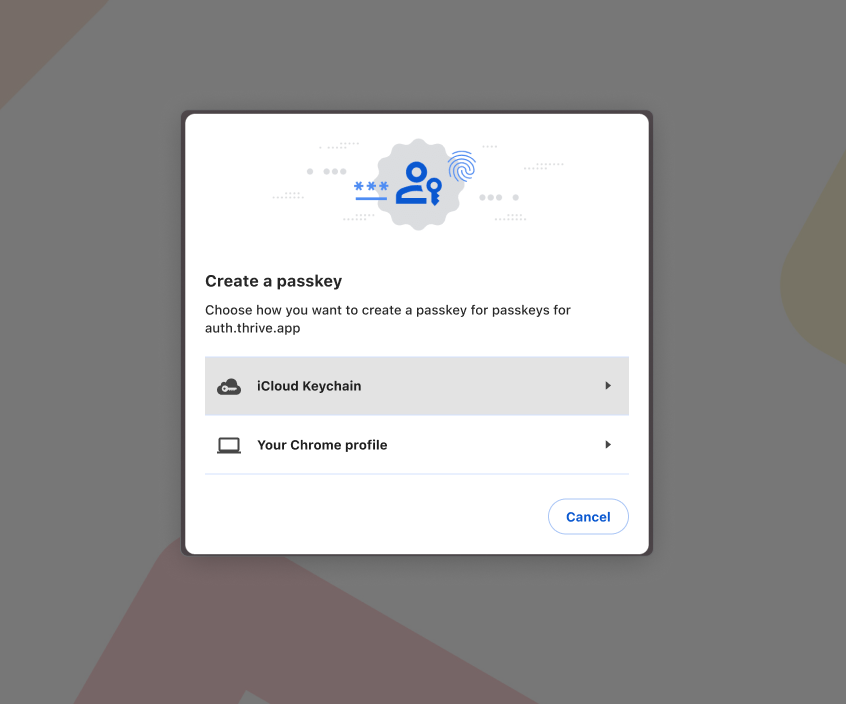
Either way, once you have created this Passkey, that's what you will use going forward to access the Thrive CMS for your organisation.