Adding Content to Your App
How to Duplicate a Page

You can use the Duplicate option in the Thrive CMS to create a duplicate of any Page.
Whereas the Existing option allows you to place a single piece of content in two different places in your app, a duplicated content item exists separately and is edited independently of the original.
This opens up the possibility to create a great-looking template page for your news updates. Set up your template page with the necessary header graphics, title text colours, etc and maintain a consistent visual style in your employee app by simply duplicating your template page each time you want to make a new post!
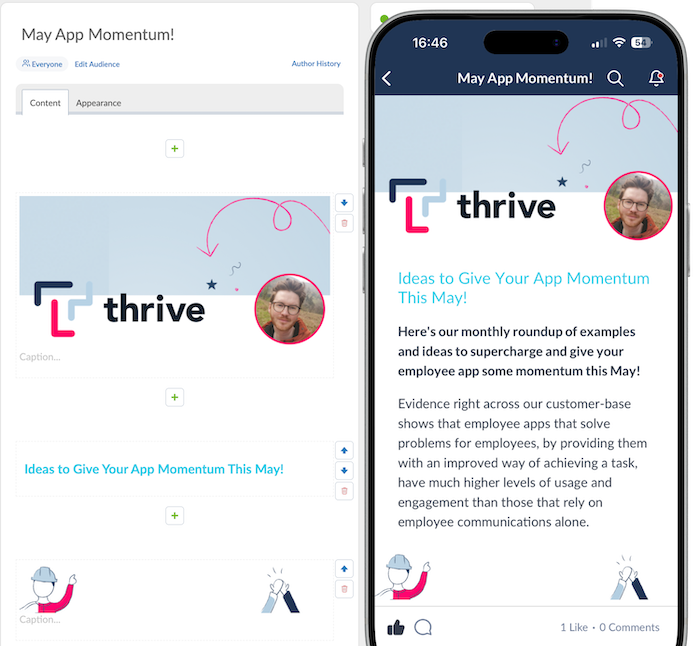
Even a simple header and footer image in your duplicated template like the example below can not only give your app updates a great visual boost, but also helps embed and promote your company's visual identity across your employee app.
Duplicating a Page is really simple...
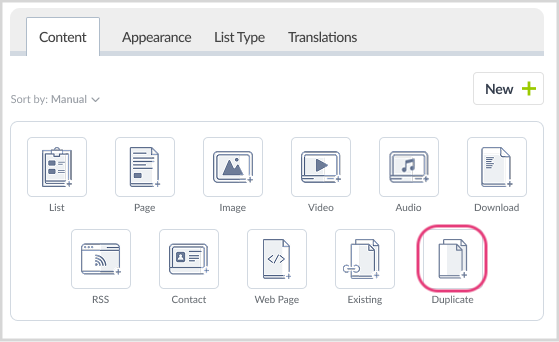
Start by navigating to the List where you want to create your duplicate and click the new Duplicate option:
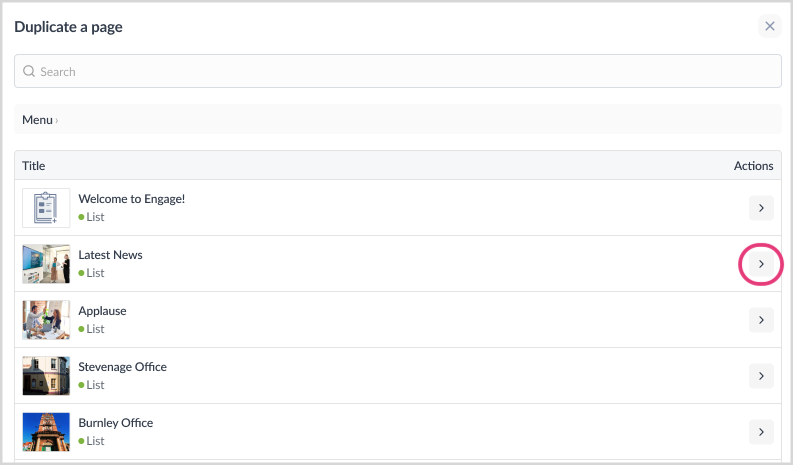
Next, choose the List that the Page you want to duplicate is currently published in. Click the arrow beside the List to open it and see the Pages that are in that List. Or simply use the Search bar at the top of the screen to search for the title of the Page you wish to duplicate...
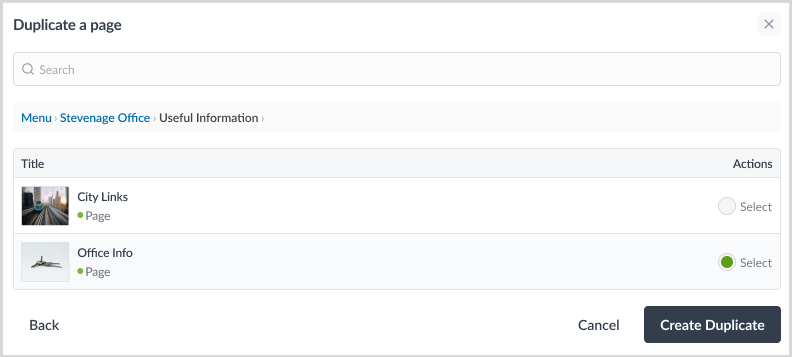
And finally, select the Page that you wish to duplicate and click on the Create Duplicate button. A duplicate of that Page will be created in the List you started in and your duplicate will be created as a Draft so that you can edit it as appropriate before publishing!
It's that simple! Next time you're creating a new post to your app, set it up with some of your company's branding like the example above, then simply duplicate that Page going forward to make it easier to give your employee app a consistent visual style in line with your company's brand!