Thrive Formbuilder
Set up Conditional Email Rules to Route the Form Submissions to Different Email Addresses

You can use Conditional Email Rules to ensure that when the user makes a submission on your form, the submitted information will be sent to a different person or department's email address, depending on options the user selected in the form.
For example, let's say you created a form for employees to report near-miss events and safety concerns, but your organisation has multiple different sites each with their own Health & Safety Manager who needs to receive these reports that relate only to their own site.
Or perhaps your form is for employees to submit their timesheets, but each department manager has to record their own time and attendance data - so when an employee submits their timesheet, you want it to be submitted to a different email address depending on which department that particular employee works in.
Conditional Email Rules allow you to control where the employee's form submission data goes, after the user fills in your form and presses the 'submit' button. You can set up these rules to be based on which option the user chooses for either a Drop-Down or Choice Button field.
In your form, you'll want to add a field for the employee to choose - in this example choose which Site they work at, so that you can then set up your conditional email rules to be based on which site the employee said they work at (which option they chose). In this example for reporting a near-miss or safety concern, our organisation has four sites, and each site has it's own dedicated Health & Safety manager who needs to receive these near-miss reports for their own site.
So we add a drop-down field to our form, asking the employee to let us know which site they work at:
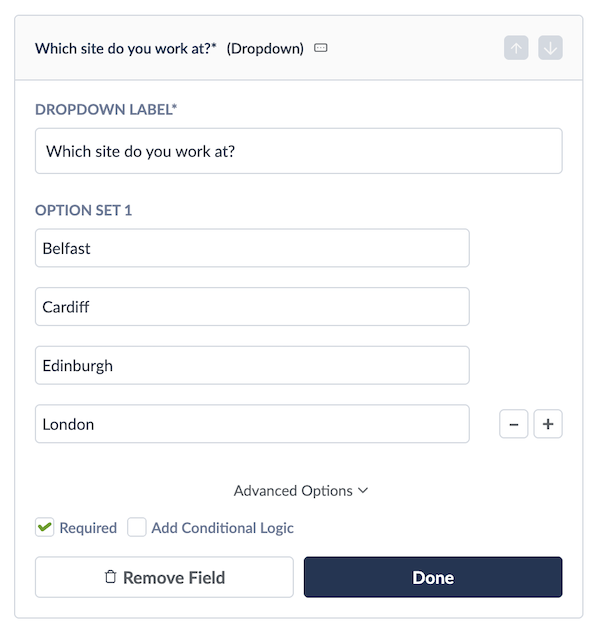
And we make sure to tick the Required option, so that the form cannot be submitted without this question being answered.
After creating the other relevant fields in the form, we can then add our conditional email rules to set the destination of each employee's submission, depending on which site they told us they work at:
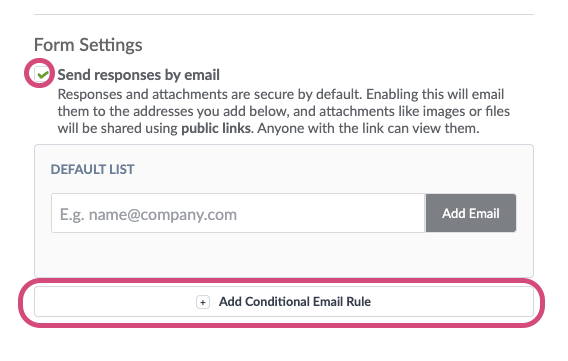
(Note: Any email addresses entered in the Default List box will receive all form submissions, no matter which other rules you create).
To start creating your email rules, Tick the Send responses by email box.
Then click the Add Conditional Email Rule button.
And you will be able to create your first rule here:
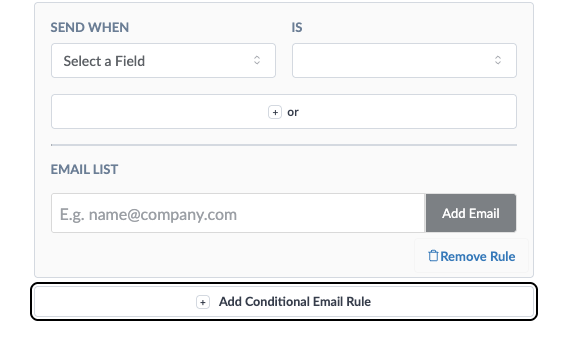
For our first rule, when What site do you work at has been selected as Belfast, we want the user's submission to go the Health & Safety Manager for Belfast.
Send When: Choose the field where the user was asked to indicate their department.
IS: Equal To.
Select a Field: In this example we'll choose the Belfast site.
Email List: Here we will enter the email address of the Belfast Health & Safety Manager, then press the Add Email button.
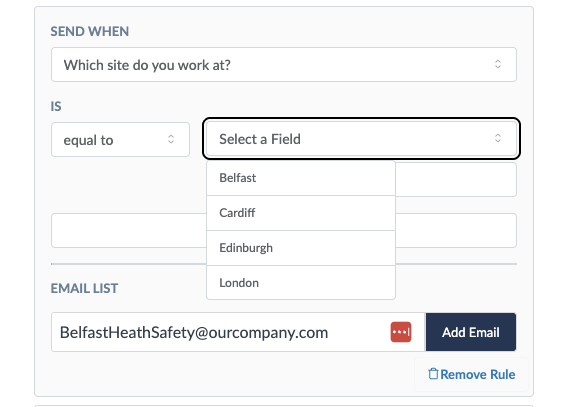
Our conditional email rule then says: "If the user says they work at the Belfast Site, send their submission to belfasthealthsafety@ourcompany.com"
You'll then want to go ahead and create similar rules for the other sites in the drop-down, to send the submissions to the appropriate person for each site.
Our full list of conditional email rules for this example form would therefore look as follows:
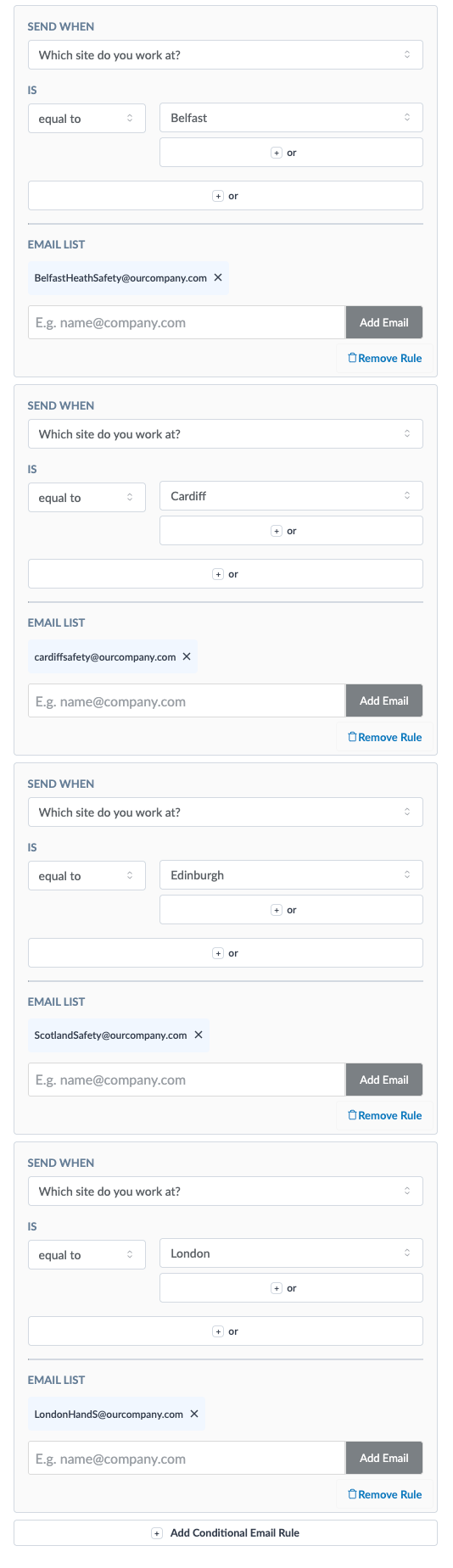
When setting up any email addresses to receive form submissions, we always recommend that you do some testing before publishing your Form for employees to use in your app. Send some test submissions, choosing each site in turn, and check with each person to ensure that they are receiving the emails containing the form submissions. If not, it's usually a good idea to ask them to check their junk / spam folder and to then mark the sender as 'safe / not spam'.
How to use the OR option
You can also use the OR option to modify any of your conditional email rules. Let's say in our example form that the Health & Safety Manager for Cardiff and Edinburgh was the same person... we could use the OR modifier to send the submission to that person when a user selects either Cardiff OR Edinburgh from the Which site do you work at? Drop-down. Like so:
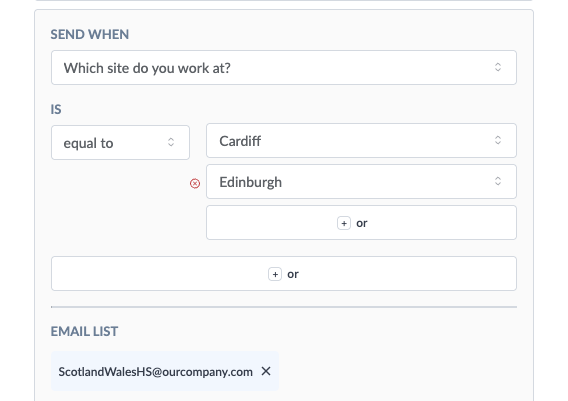
So in this case, the rule says "When which site do you work at is either Cardiff or Edinburgh, send the user's submission to ScotlandWalesHS@ourcompany.com."
Setting up conditional email rules can really help to make your forms so much more powerful! Evidence right across our customer-base shows that employee apps that solve problems for employees, by providing them with an improved way of achieving a task, have much higher levels of usage and engagement than those that rely on employee communications alone. Adding this kind of problem-solver really helps to supercharge the usefulness of your app by improving the process (for safety and near-miss reporting in this particular example!) and making your app a real must-have for your employees!