Adding Content to Your App
Remove and Restore Content Using the Archive

Removing content from the app is quick and easy. Simply navigate to the content you want to remove, click on the 3 dots to the right hand side and select Archive
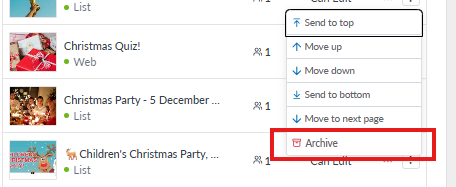
This will send your content to the Archive located on the left of the screen
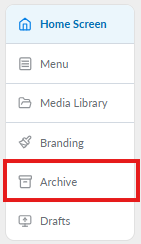
If you have archived an item in error or if you want to restore a piece of previously archived content, just navigate to the Archive folder illustrated above, then search for the archived content. You have 3 ways to do this:
- by Content Type by selecting the dropdown labelled 'All Content'
- by Timeframe by selecting the dropdown labelled 'All Time' or
- by Content Title by entering the content title into the search box 'Search by content title'

Then click on the piece of content you want to restore and select whether you want to restore the content to a new location and/or as a draft, and click Restore
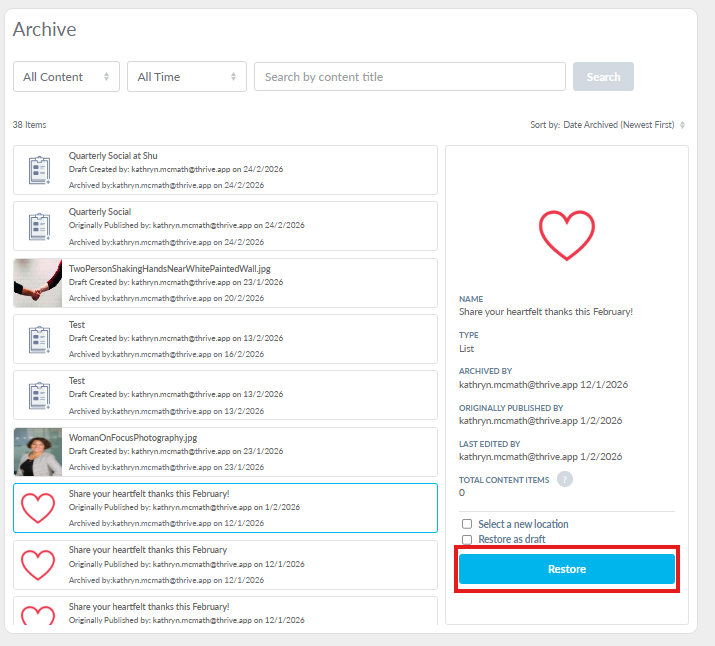
This will restore your archived content!