Adding Content to Your App
Types of Content You Can Post in a List

As we explained in the previous post about creating the structure of your app Lists are like containers for content posts.
When you click the +New button, you can post various types of content, and each type is explained below.
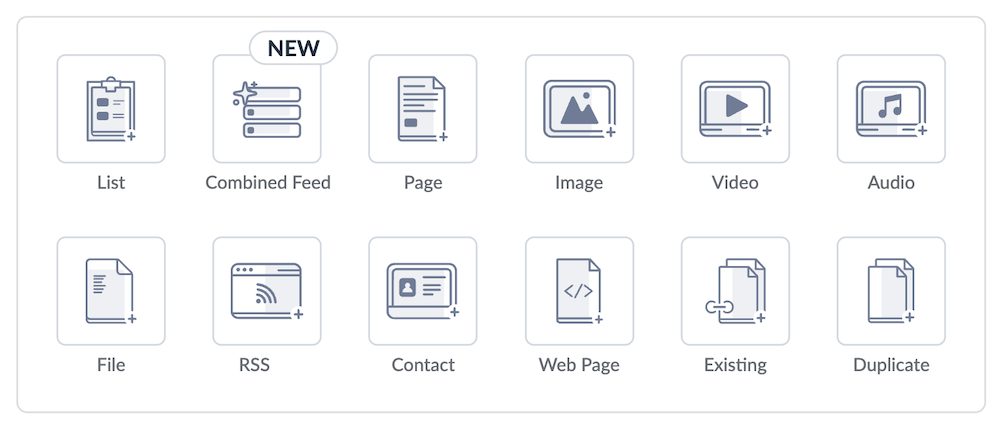
List:
A List is a container for content. Think of it like a folder, a category or a section. A List contains multiple content items like Pages, Contacts, etc. Your app's Home Screen will usually be made up of various different Lists that contain different types of content. For example a Latest Company News List, an Internal Jobs List, a Share Your Bright Ideas List, etc
Combined Feed:
This is a special type of List that pulls in content from various other lists in your app. Most Thrive customers put a Combined Feed at the top of their app's Home Screen to make it easy for users to discover new content from various Lists right across the app all in one place. You can find out more about the Combined Feed here.
Page:
A Page is a single piece of content, like a news story, an article, etc. A Page can contain text, images, videos, etc as explained in this Help Centre article and the image below. If you're adding new content inside a List, most of the time you're going to be adding a Page! When you add a new Page, you can then add the following modules to create your news story, update, job posting, or whatever you're creating...
Image:
Just an image and nothing else. This option allows you to add an image directly to a List. But it's usually better to create a new Page first, then add your image(s) to that Page. If you add an image directly to a List you can't add any text to go along with it, and users can't like and comment. You can find guidance on image sizes and dimensions at this Help Centre article.
Video:
As was the case with the Image, this allows you to add an MP4 video directly to a List. But again, if you also want to add some text and you want users to be able to like and comment, add a Page to your list then add your video on to the Page!
Audio:
Add an MP3 audio file directly to a List.
File:
Add a PDF file directly to a List. You might use this option if you're adding content to a List of Policies for example.
RSS:
Allows you to add an external RSS Feed to a List.
Contact:
Create a Contact widget in a List. For example your List might be titled Useful Contacts. You can add each of your contacts to this List using this Contact content type. See further guidance at this Help Centre article.
Web Page:
Use this option to link to any external website. For example you might have a List titled Useful Links & Resources. If you wanted to provide a link to your payroll provider portal, or a separate employee benefits portal on the internet, you can do so using the Web Page content type. See further guidance at this Help Centre article.
Existing:
An in-app link. Simply add a link to a piece of content that already exists in another List in your app. This does not create a duplicate or new version - it simply links to that existing piece of content.
Duplicate:
Create a duplicate of a Page that already exists elsewhere in your app. For example, you might set up a template page with heading colours, header and footer graphics, etc - instead of creating from scratch each time you can duplicate the template to make things easier. See further guidance and explanation at this Help Centre article.