Adding Content to Your App
Understanding Publishing Statuses

In this article we will look at how to Save content, how to Save & Publish content and what the different publishing statuses mean.
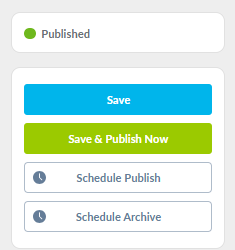
When creating content in the app, you will want to click on 'Save' to save your content and review before publishing. This allows you to make changes and ensure you are happy with your content before making it live in the app. Whilst you are drafting content and once you have pressed save, you will see the 'Draft' status with a grey dot in the top right of the screen, letting you know that the content is not yet live in the app
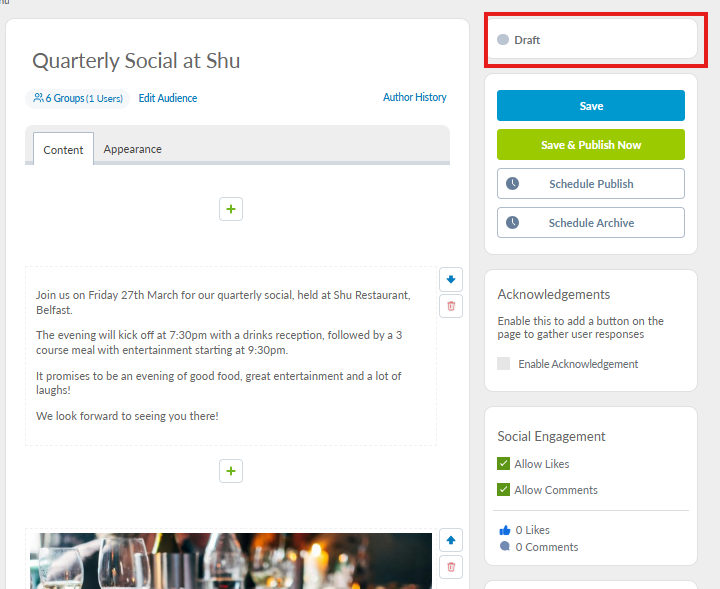
You can see when content has been saved, rather than published live in the app as the dot beside any content that has not been published will be grey

Once you are ready to Publish your Content, you simply click on 'Save & Publish Now' under the 'Save' button. This means that your content will immediately be live in your app and the status at the top right of the screen will change from 'Draft' to 'Published' with a green dot
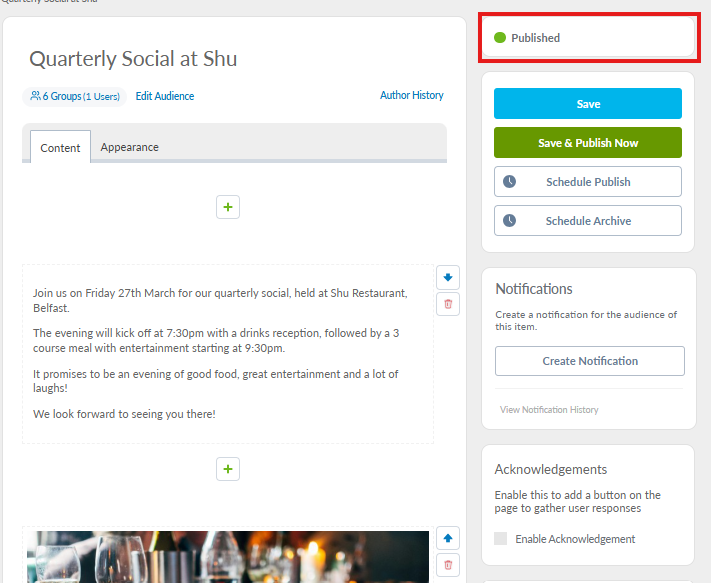
You can see when any content has been saved and published live in the app as the dot beside published content will be green

Should you edit any content in your post, when you press save, this will change the status to 'Published with changes drafted'. This means that the original content remains live in the app but the changes are drafted and ready to publish in the CMS
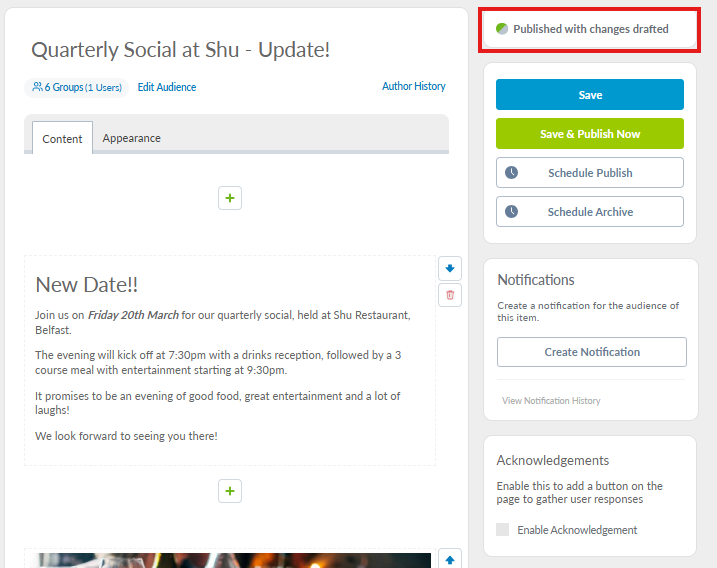
You can see when content has been edited and changes drafted with the original content remaining live in the app as the dot beside this content will be orange

If you want to go ahead and make the changes live, then simply click on Save & Publish Now and the content will be live in the app and the status will change to Published with a green dot!