Adding Content to Your App
Add a Combined Feed to Display Content From Multiple Lists All In One Place

What is a Combined Highlights Feed?
The Combined Highlights Feed allows you to display content from right across the various Lists in your app, all in one place. The idea behind using a Highlights Feed is to improve content discoverability!
Your app's Home screen usually contains multiple Lists, with a 'Latest News' List in the Hero spot at the top. Your Latest News content is visible because its in that Hero spot, but as for the content that's getting posted inside the other lists on your home screen - unless you send a notification to let your employees know about new content being posted in those sections, they often won't know that there's anything new there unless they deliberately go looking through all of your various Lists / Tiles.
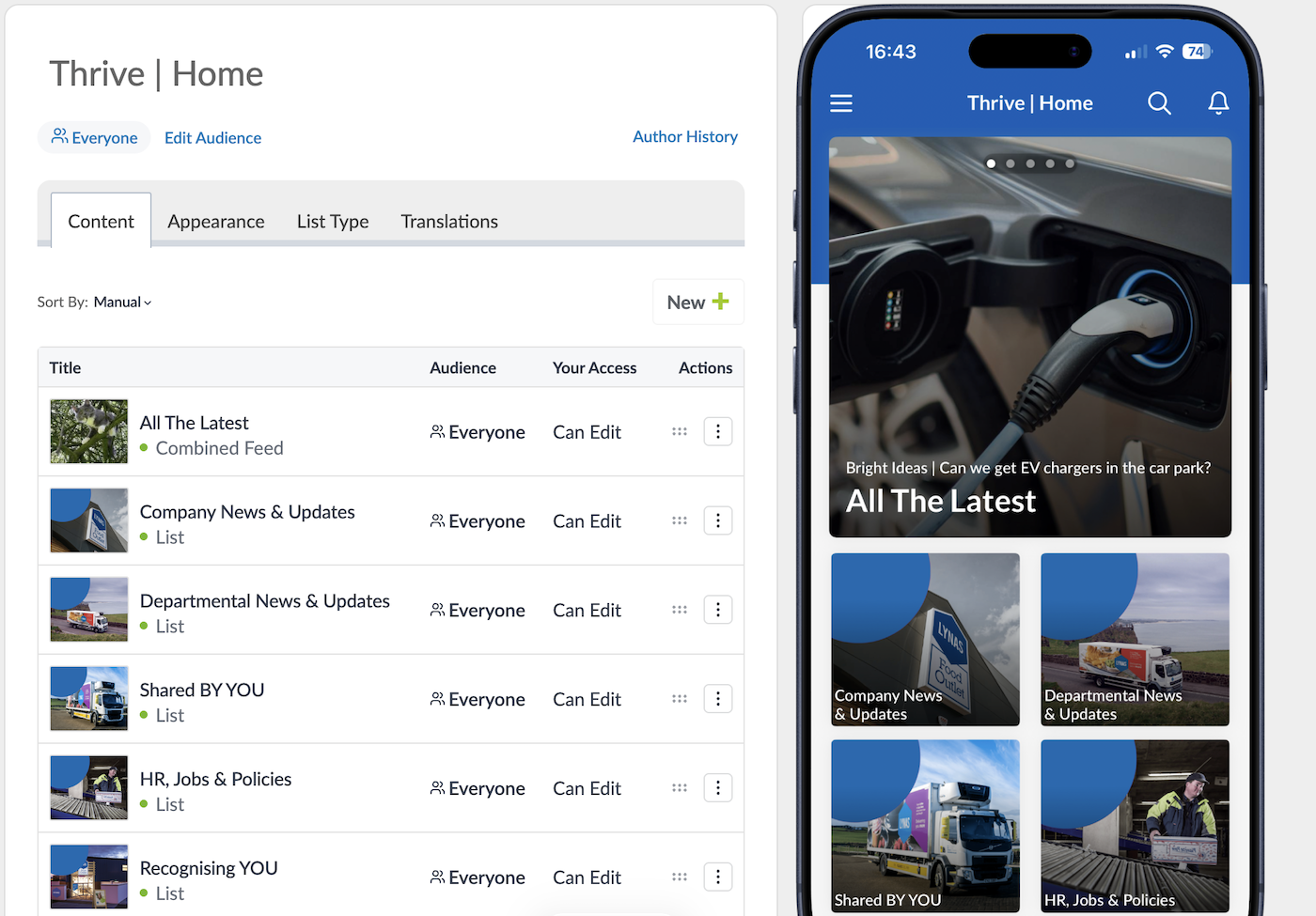
That's where the Combined Highlights Feed comes in. The Combined Feed is a type of List that you don't post to directly. Instead, you choose which 'Source Lists' it will pull its content from. Consider creating a new Combined Feed in that Hero spot at the top of your homescreen called something like "All the Latest", and move your 'Company News' List down into second place. You can then set up your combined Highlights Feed to automatically pull content from all the other Lists on your homesceeen, or only from from specific Lists that you select. So that every time something new is posted in any of those lists, it will also go straight into your Highlights Feed without the user having to go look for that new content!
How to Add a Combined Highlights Feed to Your App
- In the Thrive CMS go to your app's 'Home Screen' List and press the +New button.
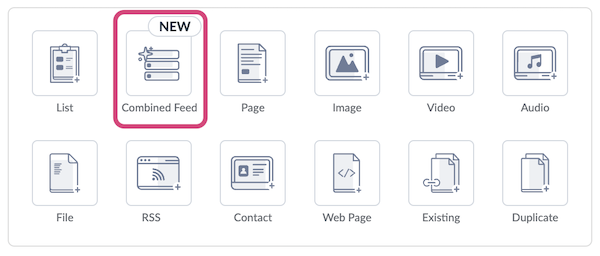
- Now select the Combined Feed Content Type.
- Enter a Title for your Combined Feed, like "All the Latest Updates".
- Use the Appearance Tab to choose the appearance and layout options for your feed...
We recommend that you enable the Hero: Carousel, and don't give your List a featured image - setting it up like this means that your List will automatically show the featured image from the most recent content inside your list, rather than having one static featured image that never changes. Set it up like this: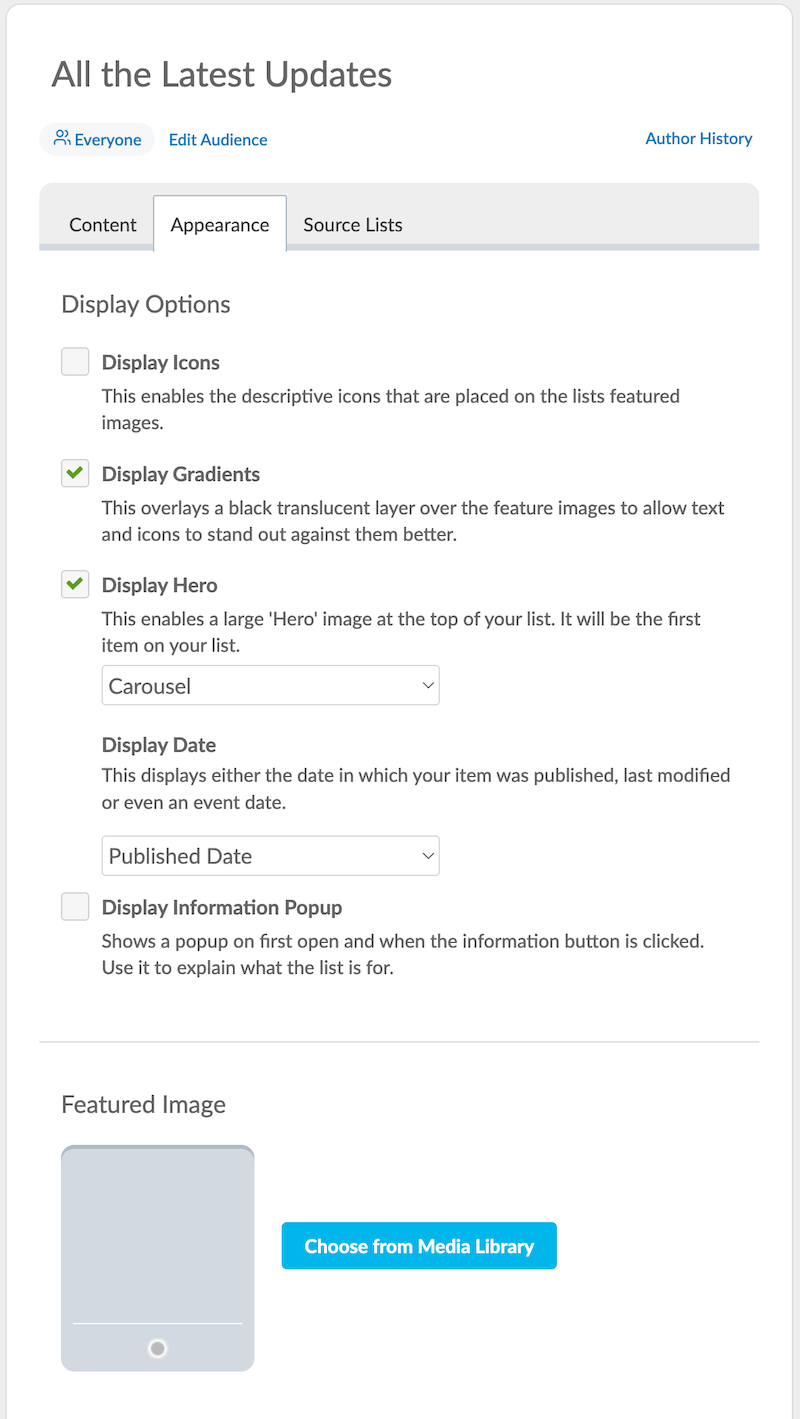
And finally, use the Source Lists tab to choose which Lists in your app are going to contribute content to your Combined Highlights Feed. At this point, press the Save button to save what you've created so far without publishing it to your app.
Build Your Feed Using the Source Lists tab
This is the important part! The Source Lists tab allows you to choose which Lists in your app are going to feed content into your Combined Feed. The Combined Highlights Feed is all about improving content discoverability - making it so that your users don't have to go hunting through the various sections of your app to find what's new. Anything that gets posted into any of the Source Lists that you choose, will appear in your Combined Highlights Feed!
Go to the Source Lists tab and press the Add Source Lists+ button, and you'll get two options:
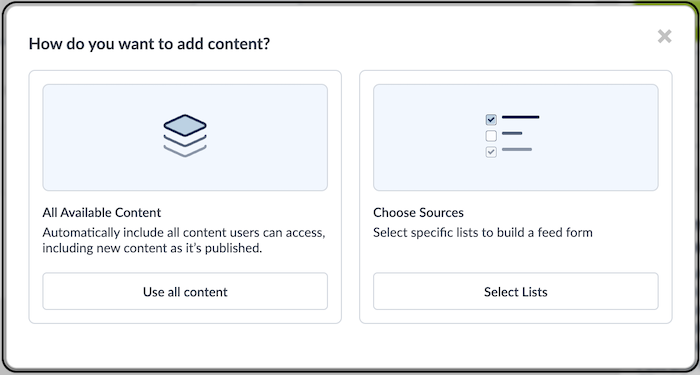
- Use All Content: Selecting this option means that absolutely everything that gets posted to any part of your app will be added to your Combined Highlights Feed.
- Select Lists: Selecting this option allows you to choose which specific Lists are going to contribute content to your feed. For example, perhaps you want everything from News, Recognition, Safety Updates and Share Your Photos to appear in the feed, but not new stuff posted in Policies, Contacts, etc.
If you choose the Use All Content option, that's it - you don't have to do anything else except press the Save and Publish Now button. Anything that gets posted to any List in your app will automatically also display in your new Combined Highlights Feed!
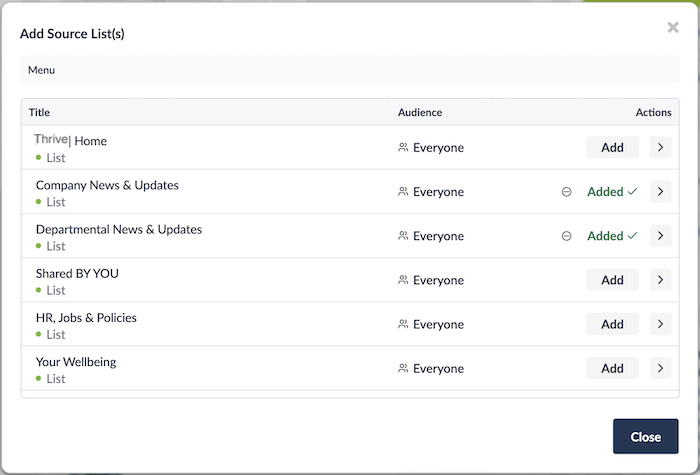
If you chose the Select Lists option, simply choose which of your Lists are going to contribute to the feed. You'll see a menu like the example below, showing the content structure of your app. To add a List as a source for your feed, simply press the Add button:
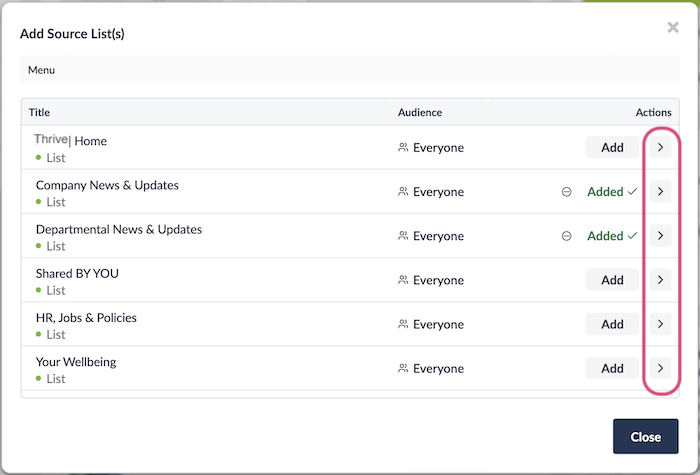
Or if you want to go down a level to add a List that's inside another List, press the arrow button at the right hand side of the menu:
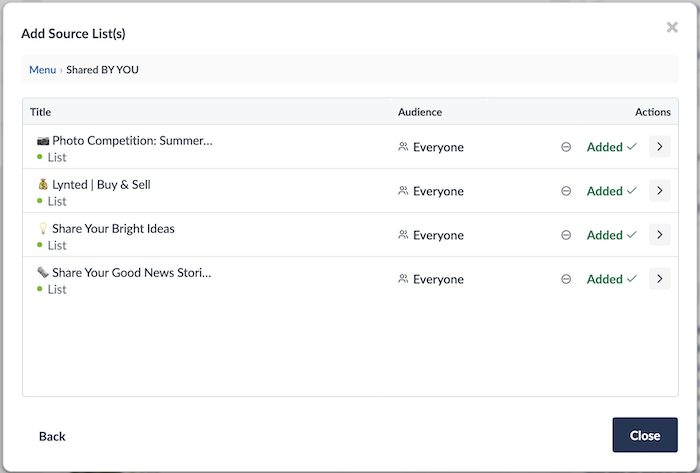
For example, if I wanted to add content from some of the User Generated Content Lists that are inside the Shared by YOU List, I would click the arrow, and would be presented with the 'sub-lists' that are inside Shared by YOU. Then I could use the Add button to add the content from each of these Lists to my feed:
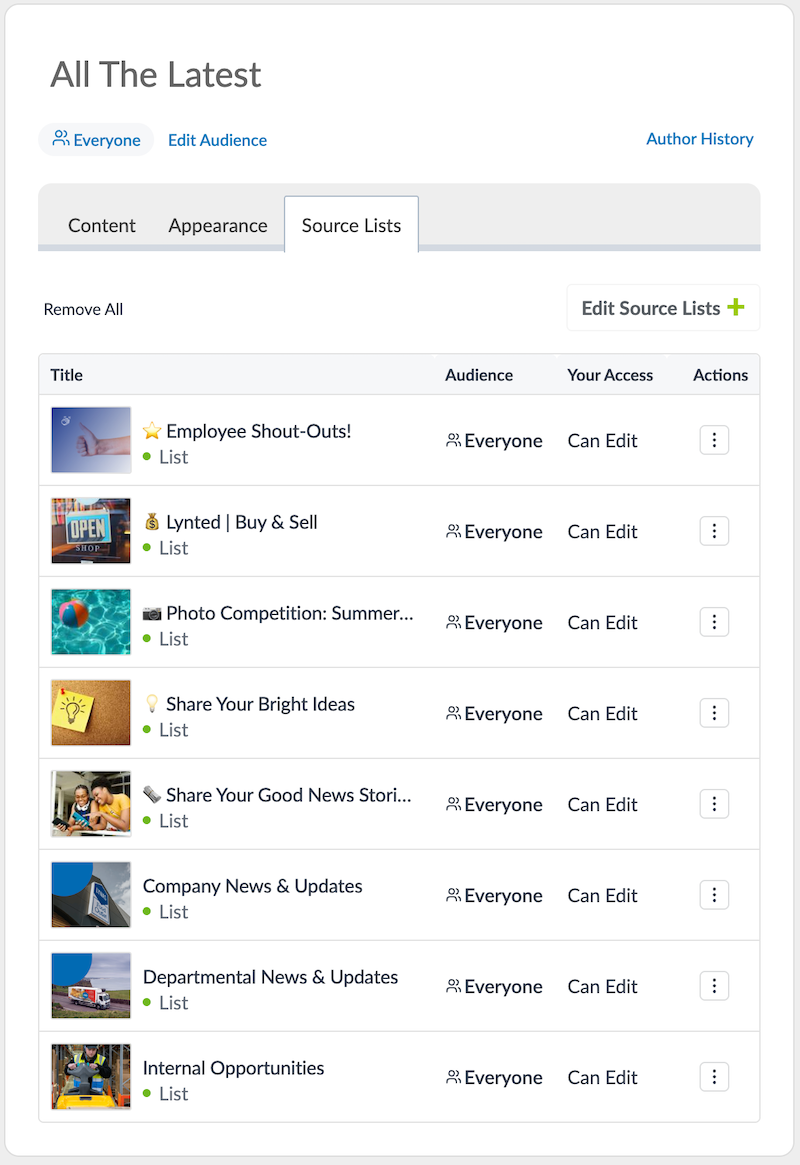
When you've finished selecting which Lists are going to feed your Combined Highlights Feed, press the Close button and you can review the Source Lists tab to check that everything looks right. Now that we have added the source lists to our feed, the Source Lists tab looks like the below example.
Remember! You can't post new content to a Combined Highlights Feed. It will only pull content from the Source Lists You have selected!
A Note on Audiences and Segmented Content
An extra cool thing about the Combined Highlights Feed is that you CAN add Source Lists that are set to a specific user group audience! Content from these Lists will go into your feed and will only be visible to the users in their audience groups!
Where's the Best Place to Put the Combined Highlights Feed?
We recommend that you add the Combined Highlights Feed to the top-spot on your app's homescreen. You'll still post your company updates into the Latest News List and add Jobs into the Internal Vacancies List, etc - so nothing will change in terms of how you currently post new content to your app. The Highlights Feed however means that your new content is much more visible to users, and much more likely to be read / watched and engaged with.
Adding your User Generated Content Lists to your Highlights Feed, like in the example above is also a great way to improve visibility on those posts and to encourage even more of your employees to engage and participate.
So after adding the Combined Feed, your app's homescreen in the CMS will look something like the following: