News & Feature Release Updates
Simplify Employee App Logins with Passkeys: Available Now!

Passkeys Functionality is here!
Team Thrive is excited to announce that we have now released Passkeys feature to simplify and secure your app logins using FaceID & Fingerprint Biometrics or PIN!
What are Passkeys?
Passkeys are our new, more secure standard for two-factor authentication (2FA) on the Thrive platform. Passkeys replace traditional Passwords with a faster and simpler method of logging in to your Thrive app.
With Passkeys enabled, users will be prompted to create a Passkey the next time they open your app. This is an easy process where users follow the on-screen instructions to create a Passkey using biometrics like FaceID, TouchID (fingerprint scanning) or if they have an older device, a PIN number.
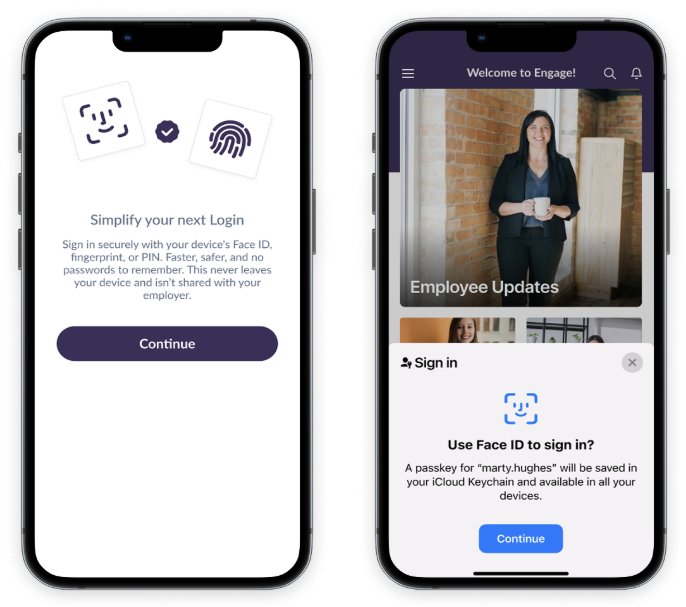
What are the benefits of having Passkeys functionality available in your app?
- Added Security: Passkeys are more secure than passwords as they provide 2-Factor Authentication for access to your app
- Ease of Use: Users no longer have to remember a password to get into the app if they get logged out, just use FaceID or TouchID to get back in!
- Reduction in Workload for Admins: Reduce your App Admin’s workload by drastically decreasing the amount of password reset requests
Passkeys Can be Optional or Mandatory
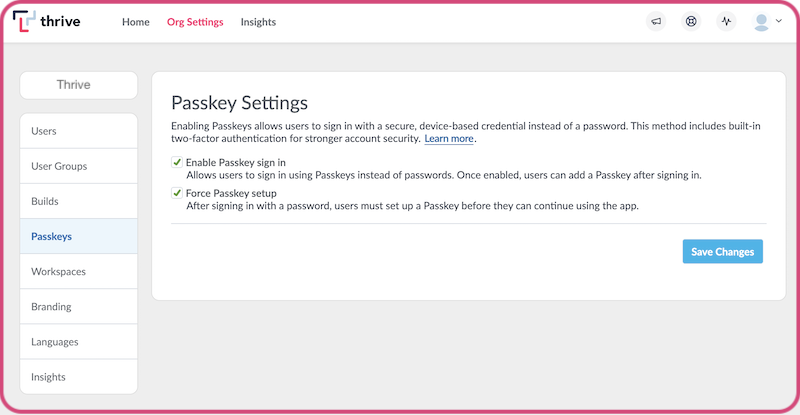
As an App Admin, you'll get to decide whether the creation of a Passkey is Optional or Mandatory for your employees. If you choose to make them Optional, your employees can add a Passkey when prompted, but they'll also see a 'Skip For Now' option which allows them to continue using Password logins.
If you set Passkey creation as Mandatory, there will be no option to skip and Passkeys will completely replace Passwords for a simpler and more secure login experience to your app.
We recommend to implement Passkeys as optional. You're asking your employees to install a 'work app' on their personal device and although the app makes it clear that neither their employer nor Thrive has access to their biometric data, some employees just might not feel comfortable with this kind of functionality. If they skip and change their mind later, they can always set up a passkeys in the app settings menu if they want to.
What are the steps to roll out Passkeys?
- Decide if you want to use Passkeys
- Decide if you want Passkeys to be Optional or Mandatory
- Let your employees know that Passkeys are coming – you can see a template News article for your app here
- Activate Passkeys with your Client Success Manager
Where Can I Learn More About Passkeys?
Our Thrive Help Centre contains information on all things Passkeys, including:
- Guidance For Existing Customers – transitioning from Passwords to Passkeys
- For Org Admins: How to use your mobile Passkey to access the CMS or vice versa
- Passkeys Technical FAQ: For your IT and Information Security Teams
Any Questions?
If you have any questions about rolling out Passkeys for your organisation or if you would like to schedule a call to activate this new feature, please reach out to the Thrive Client Success team at support@thrive.app
We look forward to bringing this exciting feature to your app to simplify and secure logins for you and your users!
Note: If your app uses Active Directory Login, the new Passkeys feature will not apply to your app and your employees will continue to log in using their company SSO Email Address and Password.