Passkeys: Two-Factor Authentication - Guidance & Technical Information
Transition to Passkeys for Existing Thrive Customers
This article outlines the transition process when moving from use of our standard Username / Password login, to enabling Passkeys for your Thrive Organisation.
Step 1: Decide if you want to use Passkeys
By default, the Passkeys functionality is turned off. We will not enable it unless you let us know that you want to turn it on. Enabling Passkeys is recommended because it provides so many benefits and advantages over the standard Username/Password login process. If a user has a Passkey, they no longer have to remember yet another password if they get logged out of your app - they simply log back in using FaceID, Fingerprint or PIN. Passkeys are also more secure because they provide 2-Factor Authentication for access to your app. And they reduce the workload of your App Admin team by drastically reducing the amount of Password reset requests you'll receive from your employees.
To help you make this decision, you may also wish to involve your IT and/or Information Security Teams. We have published some guidance and technical FAQs for IT and Info Security teams on our Help Centre at this link. Please pass this on to them, and if they have any additional questions or concerns, we'll be happy to schedule a call to discuss. Please contact your Client Success Manager should you wish to set up a call.
Step 2: Decide if you want Passkeys to be Optional or Mandatory
Once Passkeys are enabled for your Thrive Organisation, you have the option to make creation of a Passkey for your employees either Optional or Mandatory.
If Passkeys are set as optional, all employees will still be prompted to create a passkey but they will also have an option to skip, which says 'do this later'. If they wish, they can then create a passkey in the app settings at any time.
If Passkeys are set as Mandatory, all employees are prompted to create a passkey and there is no option to skip. They will not be able to proceed with accessing your app until they finish the process of creating a Passkey.
There are some considerations to keep in mind when making this decision:
- Having Passkeys as Optional means that some employees will still be using passwords. If an employee reports that they "cannot access the app", there's potentially more overhead to investigating whether their issue is Password or Passkey related.
- Making Passkeys Mandatory might put some users off. Remember that you're asking your employees to install a work app on their personal device. Even though you as the employer (and we as the app provider) do not have any access to your employees biometric Passkey data, some employees might not like the idea of being forced to enable biometrics for an employee app.
- Company Information Security policies on 2 Factor Authentication might trump any of the above factors. Again, try to involve your IT and Info Security teams in this decision.
Our advice: Introduce Passkeys as Optional initially, but encourage your employees to set up a Passkey when it gets enabled, and try to re-assure any concerns around biometrics in an employee app. Which leads us to Step 3...
Step 3: Let your employees know that Passkeys are coming and get-ahead of potential objections
When you have decided a date for the switch-on of Passkeys, it's a good idea to let your employees know that the change will be coming, how it will work, and what the benefits of this feature are for them as users of your app.
Start by posting a News article to your app's Latest News / Updates section. Here's one we made earlier - feel free to copy and paste the text and images from this example news story as you see fit!
The key points to let your employees know are:
- Passkeys replace traditional passwords and provide a faster and simpler method of logging into our app.
- We'll be enabling this change from [your chosen date]. After that date, the next time you open the app you will be asked to create a Passkey. Simply follow the steps on-screen!
- You'll create the Passkey using Face ID, Fingerprint or PIN, depending on the capabilities of your own device.
- Creating a Passkey means that if you get logged out of the app, you don't have to remember a Password to get back in - simply use FaceID or Fingerprint to log in!
- We do not have any access to your Passkey biometric data. It does not leave your device.
- If you're signed into an iPhone with an iCloud account or to an Android phone with a Google Play account, even if you get a new phone you'll still be able to log back into the app using your Passkey, as these also get saved in iCloud and Google Play.
- If you have any questions or concerns about the upcoming introduction of Passkeys to the app, leave a comment on this article or contact us directly at (your comms email address).
The final bullet point about encouraging your employees to ask questions in the comments is of course optional. But it can be useful to encourage employees to voice their questions and concerns, and to address them in a public forum. If other employees have the same questions, they can read the comments posted by others, and the answers you have provided. If you're doing this, just make sure to keep an eye on the Editor Activity Feed for new comments posted on the article, so that you can reply directly from the feed in the CMS.
If an employee asks a question about Passkeys that you don't know the answer to, simply drop an email to our Support Team and we'll be happy to provide you with some guidance on how to reply. You can also refer to our Passkeys Technical FAQ here.
In our experience, most employee hesitance is around the idea of using Biometrics on a "work app". They tend to be concerned that their employer will have access to their biometric data, or this data might be used for some nefarious purpose. The reality however is that your organisation (their employer) does not have any access whatsoever to the biometric data used to create the Passkey. Nor does Thrive as the provider of your employee app. Make this point as clearly as possible when introducing Passkeys to your app.
Step 4: Activate Passkeys!
Tell your Thrive Client Success Manager that you are ready to go ahead with turning on Passkeys for your app. Enabling the feature can only be done initially by Thrive, after which you can enable or disable Passkeys, and select either Optional or Mandatory for your organisation in the Thrive CMS. You can do so by navigating to:
Org Settings > Passkeys
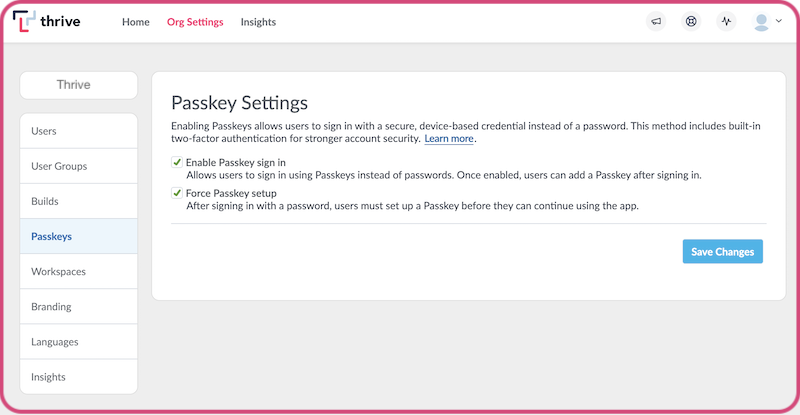
When the Passkeys feature is enabled, your users will be prompted to create a Passkey the next time they open your app. If you have chosen for Passkey creation to be mandatory (Force Passkey Setup setting in the above screenshot), your employees will not be able to access your app content until they have completed the process of creating a passkey. If Passkeys are optional (Force Passkey Setup setting is not ticked) all users will still be prompted to create a passkey, but they will also see a 'do this later' option which allows them to skip, and access your app content. Users who do this will continue to be required to enter their password to access your app in future.
The process of creating a passkey for an existing user when prompted is very simple. When the passkey creation screen is appears (as per below screenshots) users simply need to follow the on-screen instructions:
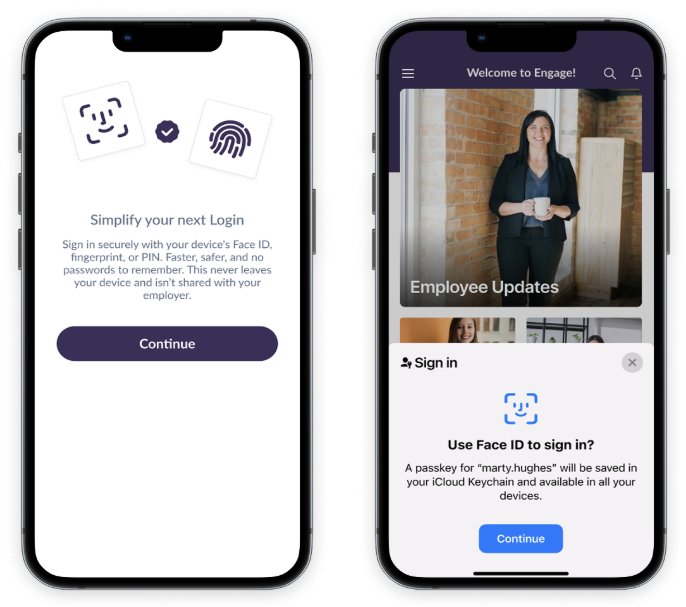
The user simply needs to press the Continue button. Their device will then automatically guide them to create a new passkey, depending on that device's capability. For example, if their phone has FaceID, then like the above example that's what the device will prompt them to use for creating the passkey. Or if they're using a very old device that does not have face or fingerprint scanning, they'll be asked to set up their passkey as a PIN number instead.
After the passkey has been created, the user will proceed to your app homescreen as normal.
Note: Signing in to the CMS as an Org Admin after creating a Passkey in your mobile app
As an Organisation Administrator or App Editor, you'll need to sign into your account on multiple devices. You'll sign into your mobile app on your phone, and you'll also sign into the Content Management System on your PC or Laptop. After you create your account Passkey on your mobile app, you will then need a code to sign in to another device and create a second passkey for accessing the CMS.