Adding Content to Your App
Post a Poll to Your App

Ask, Vote, Engage! How to Add Polls On Pages In Your Thrive Employee App
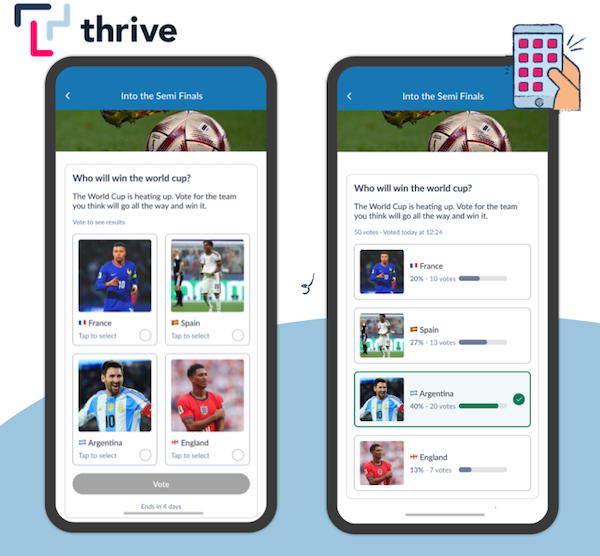
Polls provide a quick, simple and interactive way to encourage employees to get involved, share their opinions and have their say. Whether you're looking to gather feedback, ask a quick Pulse Survey question, spark conversation or simply add a little fun to your app, polls are a great way to bring your workforce together.
With our Polls feature, you can:
- Create polls with up to 20 answer options, giving employees plenty of choices.
- Add images to individual poll options, making your polls more visual and engaging.
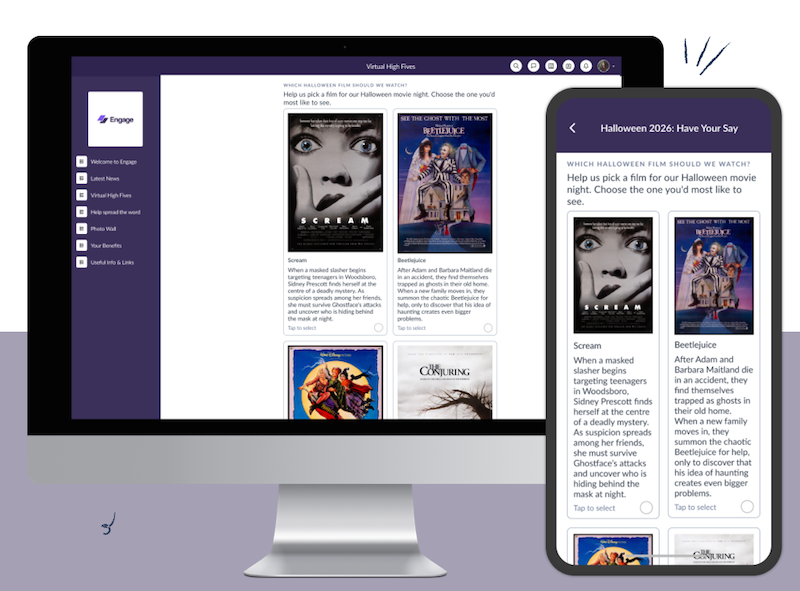
- Choose from 3 different display layouts to give a Poll your desired look and feel. Text only, images inline, and 2-column!
- Choose whether employees can see the results after they've cast their vote, depending on whether you'd like them to see the state of voting so far or keep them hidden and announce the result later.
- Add multiple polls to a single page, to create a multi-question survey
How could you use polls in your employee app?
The possibilities are endless! You could ask employees to vote for their preferred venue for your Staff Christmas Dinner, choose a theme for an upcoming staff celebration, share feedback on workplace initiatives or even to let you know how they're feeling about their work.
Our Polls feature is also the perfect way to ask quick and one-off Pulse Survey questions from time to time in your app. Using quick, one-question polls to take your employees' temperature on a particular issue is much more likely to get substantially higher response rates than the likes of an annual employee survey asking fifty different questions all at once! Though you can add multiple polls to a single page if you do want to ask your employees a few questions at a time!
Polls are also a great way to give employees a voice in everyday decisions. By making it easy for people to participate and see that their opinions matter, you can help build a more inclusive, connected and engaged workforce!
How to Add a Poll to Your App
Start by Creating a New Page
You can create a Poll for your app on a Page in the Thrive CMS. So start by adding a new Page inside the appropriate List.
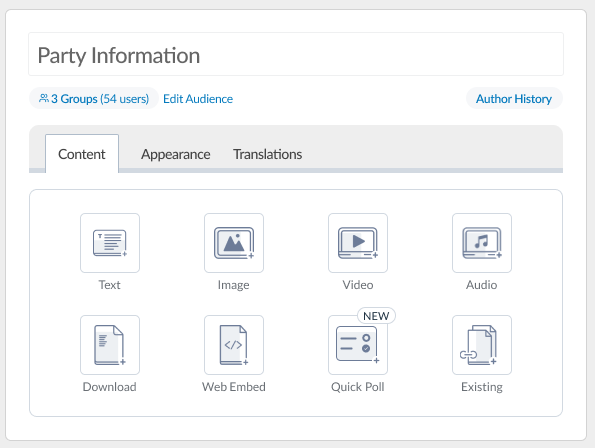
As usual, start by giving your Page a Title and a Featured Image. Now press the + symbol and choose the Quick Poll content type option:
Because quick polls are added to pages, as usual you can add all of the other normal Page widgets above and below your poll. For example, you might want to introduce the poll by adding a text widget at the top of the page and add your quick poll underneath. Or perhaps if you're posting a training video at the top of the page, you could add some 'test your knowledge' polls under the video to ask your employees questions about the information presented in your video!
Give your Poll a Title and Description
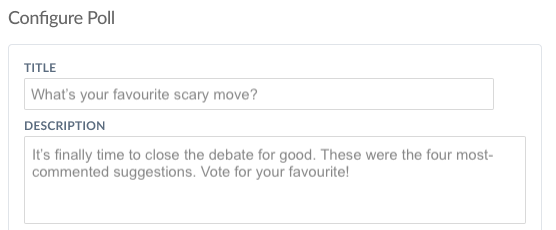
Next, add your Poll Question and Poll Description like the example shown below.
Add Options to Your Poll
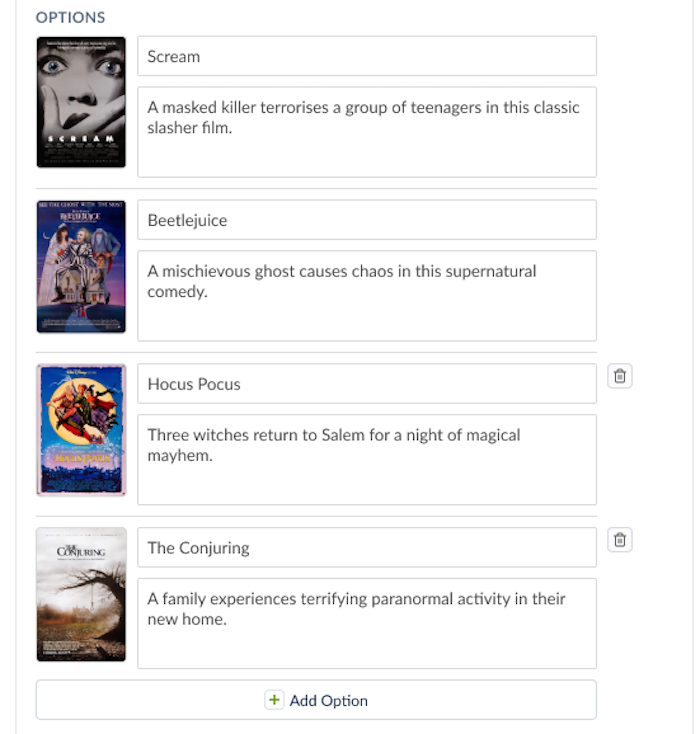
Now you can enter your Poll Options. You can enter up to 20 options per poll.
You must add a Title for each poll option, and you can optionally add a description for each one. If you don't add descriptions, the description field will simply not appear in the app; so you can achieve a cleaner look by leaving the description fields blank.
Use the +Add Option button to add more options, and use the Trash button to delete an option.
Important Note - Editing a Poll After Voting has Begun
After you have published your poll it is possible to edit the title, description and image for a particular option - but please note that if you do so, and the edited option has already received votes from users, the poll results will display both the old and the new version of the option that you edited. So please try to avoid making any edits to poll options after the poll has been published and voting has begun!
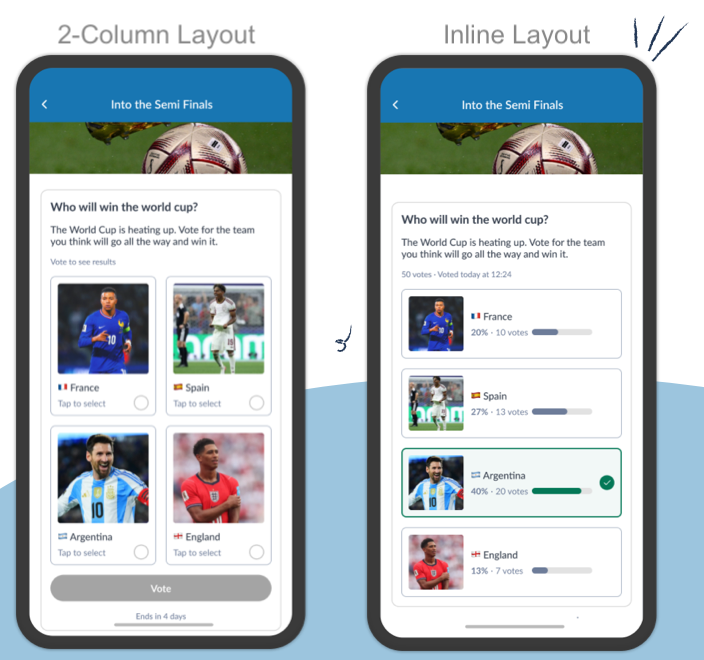
Choose a display layout for your poll from the three options:
- None: Text only, no images associated with each option.
- Inline: Small images beside each option, displayed vertically.
- 2-Column: Larger images with the option text below each one, presented in two columns.
Add Images to Your Poll Options
If you have selected In-Line or Two Column layout, you will be able to add images to each of your poll options. Press the +Image Icon beside each option to add an image:
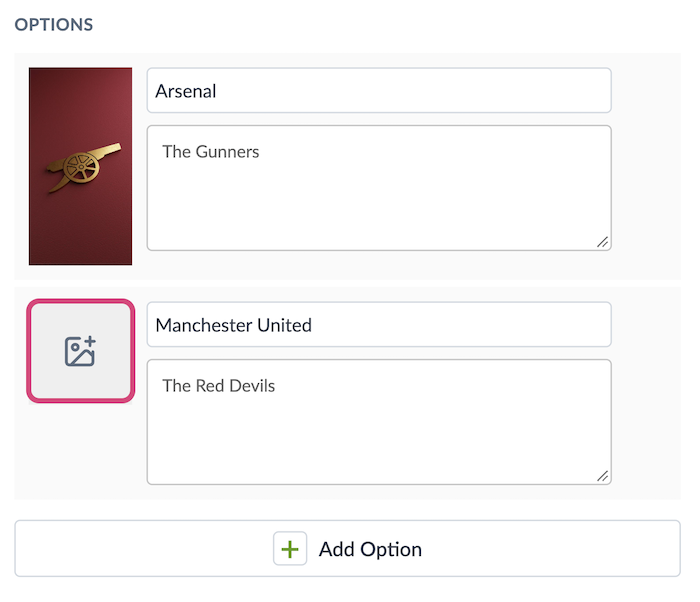
When adding images, try to make them all approximately the same aspect ratio - make sure all of your images are square for example.
Tip: For some extra on-screen animation, you can also add animated .GIF images to your options. Add a .GIF image to your poll option and the animation will play in your app!
Customise the Vote Button
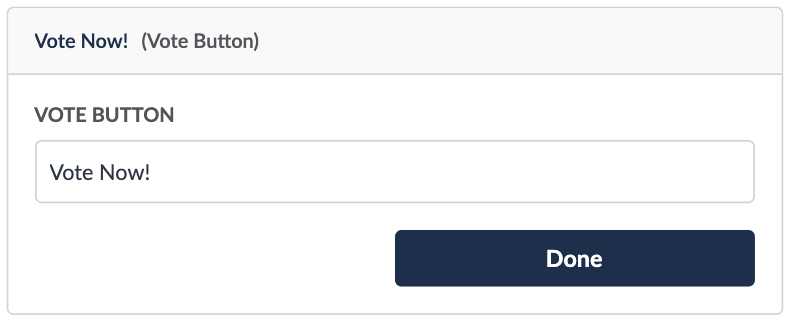
Now you can edit the text that appears on the 'Vote' button. This is the button that appears at the bottom of the poll that the user presses to cast their vote after they have selected one of the options.
You can change this to say whatever you wish, or leave it as 'Vote'. Simply press the pencil icon beside 'Vote Button' and done when you have finished editing:
Choose if you want to show users the results / progress after they have voted:
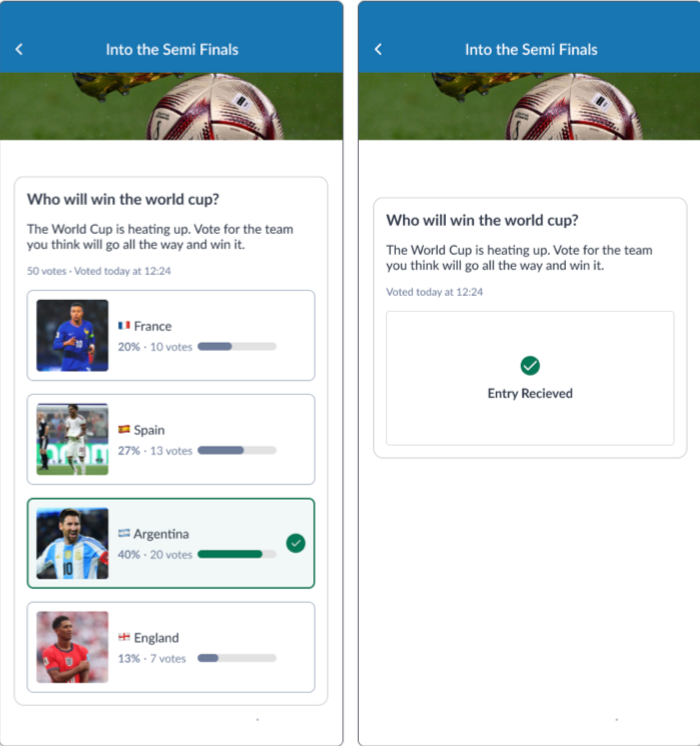
By default, show results after voting is tuned off. If you want your users to see the current status of voting for each of the options right away after they have submitted their own vote, simply tick the show results after voting option. Otherwise, if you leave this unticked because you wish to announce the poll results in a separate post to your app later, users will simply see an 'entry received' message to confirm that their vote has been received.
Polls with 'show results' enabled and disabled:
Ending Your Poll
There are two ways to end your poll:
- Set an end date for your poll in the CMS when you are creating it. Voting will automatically close at the chosen date and time and no further votes will be allowed.
- Manually end your poll in the CMS using the End Poll button.
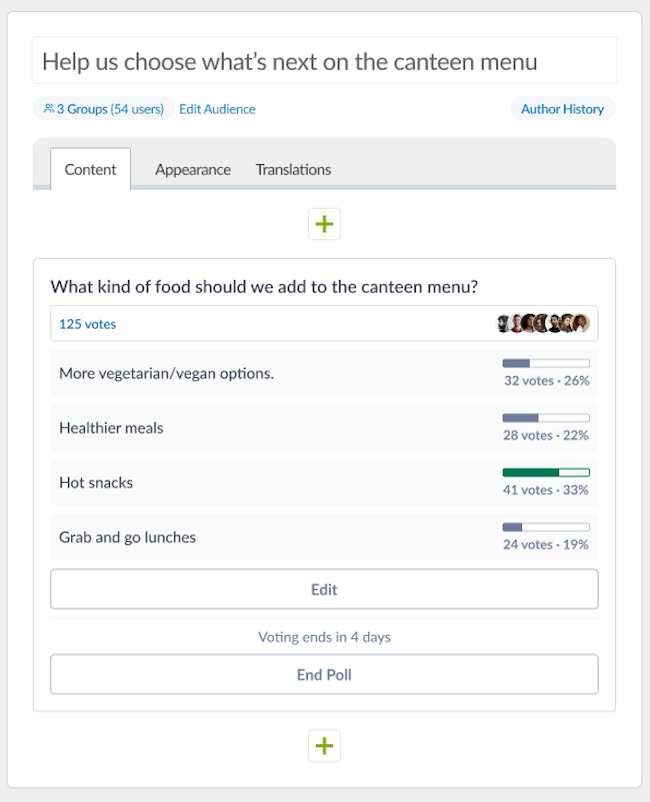
After your poll has been published, you will see the status of voting in the page on the CMS. If you wish to manually end the poll you can press the End Poll button.